

How to Install and Configure PaperCut
For help or if you have questions or problems, please contact the Solution Center, 195 Durham Center, solution@iastate.edu or call IT Services at 294–4000.
About PaperCut
PaperCut is a print and internet quota, charging, tracking and monitoring system designed to promote the responsible use of IT resources. It’s a premium cross-platform solution specifically designed to meet the needs of schools, universities and other organizations.
The client software supplied is a presentation layer around the server-side implementation. The client software is provided to facilitate four tasks:
- Allow users to supply login credentials when printing to printers that require authentication.
- Allow users to view their current account balance via a popup window.
- Allow users to select shared accounts via a popup, if administrators have granted access to this feature.
- Display system messages such as the low credit warning message.
System Requirements
- Apple Mac OS X 10.7 or higher
- 128MB or greater
Downloading the PaperCut Client
Download the PaperCut Client from here (42.6 MB).
Installing the PaperCut Client
To install the PaperCut Client (PCClient), drag the PCCient application to the /Applications folder.
In addition, the download also includes the PaperCut widget. To install the widget, double-click the PCWidget.wdgt file in the Widget folder.
Configuring the PaperCut Client
IT Services has written a the PaperCut Client configuration installer that will install the PaperCut Client properties file to configure the PaperCut Client for use at Iowa State University.
To install the PaperCut Client properties file, double-click on the PaperCutClientConfig file.
Using the PaperCut Client
The PaperCut Client needs a java runtime. No java runtime is installed by Mac OS X 10.7, OS X 10.8, OS X 10.9 or OS X 10.10. When you first run PCClient on these systems, you will be presented with a dialog similar to this:
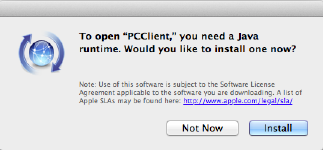
Click the Install button to install a java runtime.
Defining a PaperCut Printer
You need to define the printers that you want to print to in the Mac OS X printing system. Follow these steps to define a PaperCut Printer:
Open System Preferences and click on Print & Fax
Click the + button.
Select IP
Select Internet Printing Protocol - IPP from the Protocol menu.
Enter “papercut-ipp.iastate.edu” in the Address field.
Enter the printer’s queue name prefixed with “printers/queue-name” in the Queue field. For example, “printers/du139-lj4050”.
Enter a descriptive name for the printer in the Name field.
Optionally, enter the location of the printer in the Location field.
Select the appropriate printer model from the Print Using menu. If your printer model is not listed, you may need to install the printer manufacturer’s driver and then repeat these steps. If you have problems obtaining a driver for your printer, try the Generic Postscript Driver. This option will work with most postscript printers.
Click the Add button to add the printer. If your printer has installable options, specify them on the installable options window and then click Continue.
Printing to a PaperCut Printer
Printers that Do Not Require Authentication
If you are printing to a printer that does not require authentication, you don’t need to do anything special to print.
Printers that Do Require Authentication
If you are printing to a printer that does require authentication, you must:
Run the PCClient application before printing.
Print.
Supply your login credentials.
Enter your Iowa State Net-Id into the Username field:

Enter your Iowa State Net-Id Password into the Password field:

Optionally set how long your login credentials are remembered:


Last Updated November 3, 2014

Copyright © 1999-2011, Iowa State University of Science and Technology. All rights reserved.